Get Started
with SingWS
You've opened SingWS for the first time. Add your karaoke songs, set up background music for between singers, and choose what the audience sees.
Need to install SingWS first?
Install the app for your computer, open it, then come back to step 1.
Add your karaoke songs
- Click Library in the top toolbar.
- Click Add folder… and choose the folder that holds your karaoke files. Everything inside it is included, subfolders too. Songs on more than one drive or folder? Add each one.
- In the menu next to each folder, pick how its song files are named, so SingWS can tell the artist, title and disc ID apart:
- DISCID - Artist - Title
SC8831-14 - Chevelle - Send The Pain Below.zip- Artist - Title - DISCID
Chevelle - Send The Pain Below - SC8831-14.zip- Artist - Title [DISCID]
Chevelle - Send The Pain Below [SC8831-14].zip
The menu has a few more layouts, with the title first or the disc ID in brackets. Each folder can have its own.
SingWS scans as soon as you add a folder or change its layout. If it hasn't, click Scan.
When it's done, the Library window shows Scanned … songs, and your songs come up when you search on the Karaoke tab.
Added new songs later? Open Library and click Rescan.

Set up background music
SingWS can play music between singers, fading it out as each karaoke song starts and back in when it ends.
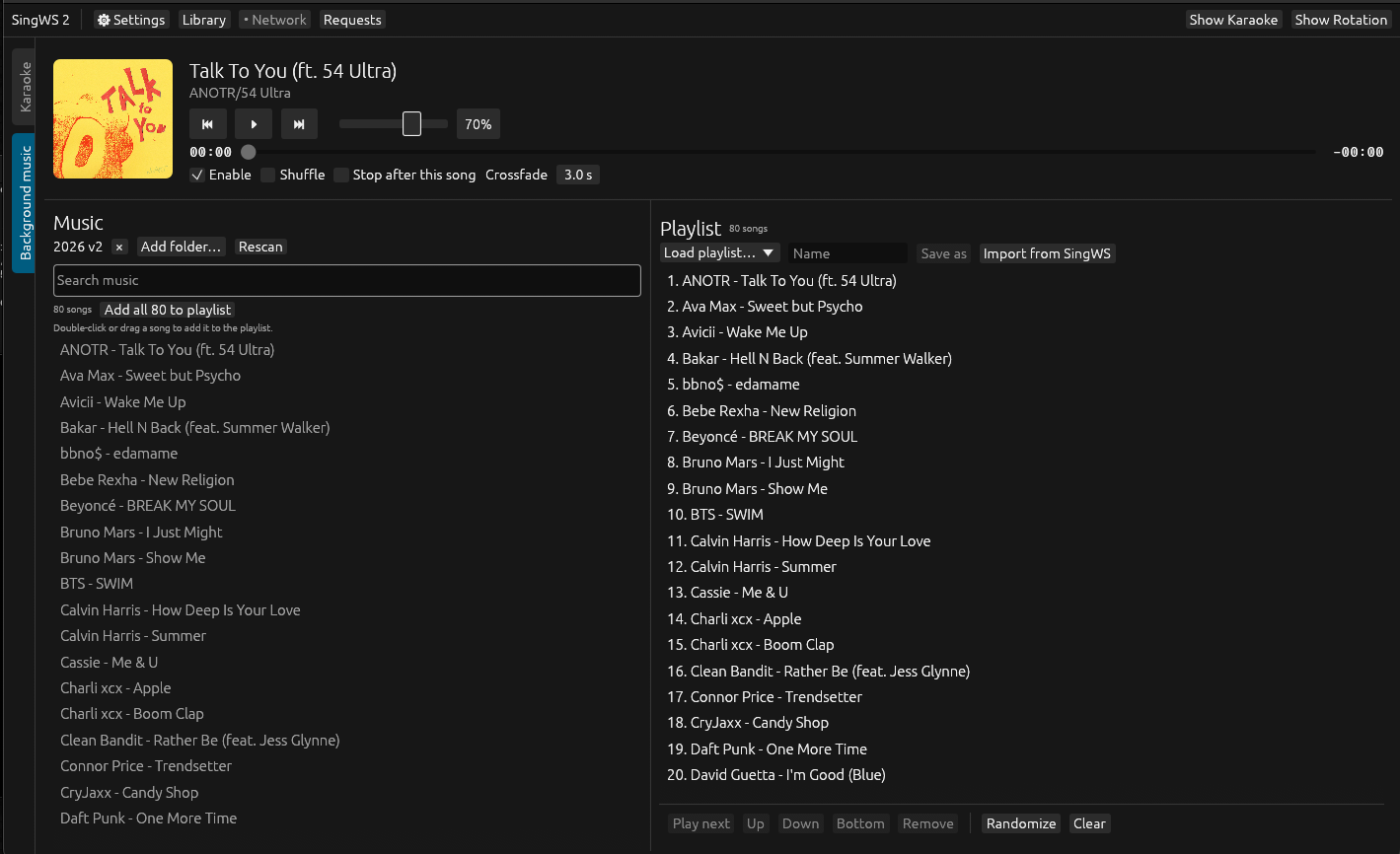
- Click the Background music tab.
- Under Music, click Add folder… and choose a folder of music.
- Add songs to the Playlist: double-click a song, drag it across, or click Add all … to playlist.
To keep a playlist for another night, type a name and click Save as. Randomize shuffles the order.
Choose your audience backgrounds
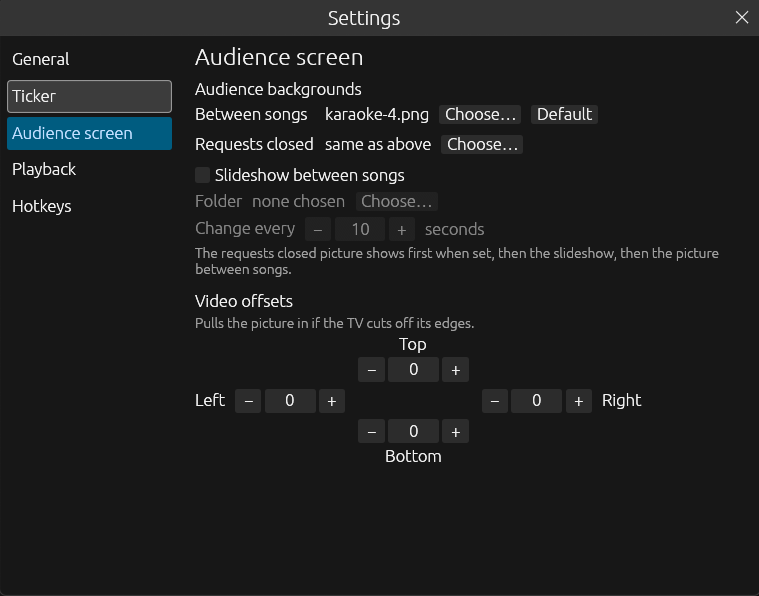
Between songs, the audience screen shows a picture. To use your own, click Settings, then Audience screen:
- Between songs: click Choose… and pick an image, such as your logo or a show poster.
- Requests closed: optional, a different image for when you're not taking requests.
- Slideshow between songs: optional, every image in a folder in turn, changing every few seconds.
Click Show Karaoke in the toolbar to open the audience screen, and drag it to your TV or projector.
Your songs are in, your music is ready, and the audience screen shows your background? You're ready for your first show.
Next: Set up Remote Requests
Want singers to request songs by scanning a QR code? Connect SingWS to your singws.com account and put your song list online.