Set Up SingWS
Remote Requests
Connect SingWS to your account, put your song list online, and try your first request.
Need to install SingWS first?
Already have SingWS? Skip ahead to step 1. Otherwise, install the app for your computer, then open it.
Get your user name and API key
Open your account page and sign in with the account you used to start your trial.
- Find your User ID near the top of the page. This is the User name you will enter in SingWS.
- Find API Key (for SingWS app) farther down the page.
- If a key is already shown, click it to copy it. If the page says No API key yet, click Generate new API key once, then copy the key.
Use your User ID as the user name, rather than your email address. Keep your API key private.
Connect SingWS to your account
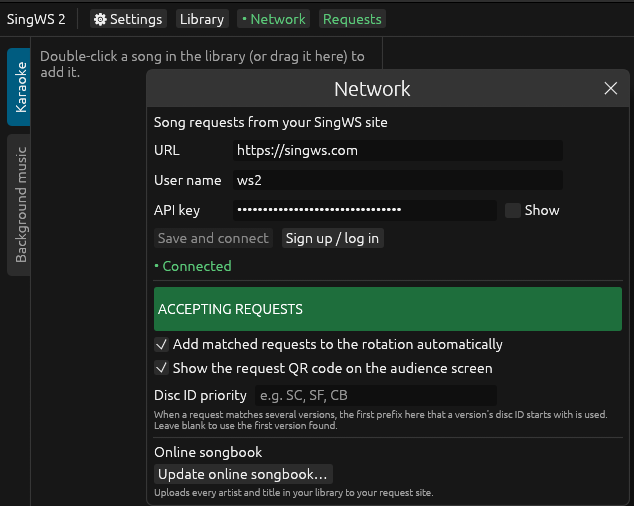
In the SingWS app, click Network in the top toolbar.
- URL
https://singws.com- User name
- Your User ID from the account page
- API key
- Paste the key you copied from your account page
Click Save and connect.
You should see Connected in green.
Upload your song list
Once your karaoke library is available in SingWS, return to the Network window.
Under Online songbook, click Update online songbook… and follow the upload dialog.
This uploads song titles and artists for people to search. It does not upload your karaoke audio or video files.
Try your first request
- Check that the Network window shows Connected and ACCEPTING REQUESTS.
- Open your request page and check that your songs appear.
- Choose a song and submit a request using a test singer name.
- Check SingWS for the incoming request.
You can find your personal request-page link on your account page.
Your song list is online and the test request appears in SingWS? You’re ready to share your request page with singers.